An IPTV box is a hardware device that enables you to stream IPTV content directly to your TV. It connects to the internet via Wi-Fi or Ethernet and allows you to access IPTV services, such as live TV channels, video-on-demand (VOD), and interactive content. These boxes are typically used with IPTV subscriptions, allowing users to enjoy high-quality streaming without needing traditional cable or satellite TV services. IPTV boxes come in various forms, with some being Android-based and others being specific to certain IPTV providers. They typically include ports for HDMI, USB, and Ethernet, offering flexibility in how you connect your device and stream content. 🏅 Best IPTV Boxes in 2025 Choosing the best IPTV box depends on your budget, preferences, and required features. Here are some of the top-rated IPTV boxes for 2025: 1. NVIDIA Shield TV Pro One of the most popular Android-based IPTV boxes, the NVIDIA Shield TV Pro is powerful, offering great performance for streaming, gaming, and other media needs. It supports 4K HDR content and runs on the Android TV operating system, allowing users to install third-party IPTV apps easily. Key Features: 4K HDR streaming Android TV operating system Voice remote control with Google Assistant Supports Dolby Atmos sound Excellent gaming performance Best For: Those who want a premium streaming experience with the flexibility of an Android-based system. 2. Amazon Fire TV Cube The Amazon Fire TV Cube is an excellent choice for those who want a simple, fast, and reliable IPTV streaming experience. This device integrates Alexa, Amazon’s voice assistant, allowing you to control your IPTV box with voice commands. The Fire TV Cube supports 4K Ultra HD streaming and is compatible with a wide range of IPTV services. Key Features: 4K Ultra HD support Voice control via Alexa Easy setup with Amazon’s Fire TV platform Streaming from apps like Netflix, Prime Video, and more Hands-free control of compatible smart home devices Best For: Users looking for ease of use, smart voice control, and quick setup. 3. MAG 322/424 IPTV Box The MAG 322 and MAG 424 are reliable IPTV boxes that are specifically designed for IPTV service providers. They support both HD and 4K streaming and come with a Linux-based operating system, making them incredibly stable and secure for IPTV streaming. These boxes are widely used in the IPTV industry for delivering high-quality content to users. Key Features: Supports HD and 4K streaming Linux-based operating system for reliability Stable connection to IPTV servers Supports a wide variety of IPTV services Easy-to-use remote control Best For: IPTV subscribers looking for a stable and reliable set-top box that works well with most IPTV services. 4. X96 Mini Android Box The X96 Mini is a popular budget-friendly option for those looking for a low-cost Android IPTV box. It’s compact and offers a simple interface for streaming live TV and on-demand content. The box supports HD and 4K streaming, and since it’s Android-based, it can run all the popular IPTV apps. Key Features: Compact and affordable design Supports HD and 4K streaming Android operating system for app installation Supports a wide range of streaming apps Easy setup and remote control Best For: Budget-conscious users who want a simple and effective IPTV box for streaming. 🛠️ How to Set Up an IPTV Box Setting up an IPTV box is usually straightforward, but it does depend on the model and IPTV service you use. Here’s a general guide for setting up an IPTV box: 1. Unbox and Connect the IPTV Box Connect the IPTV box to your TV using the provided HDMI cable. If using an Ethernet cable, connect the box to your router for a wired connection. Alternatively, you can set it up via Wi-Fi. Plug in the power adapter to turn on the device. 2. Install the IPTV App Depending on the IPTV box you’ve chosen, you may need to install an IPTV app. Many boxes (such as Android-based boxes) allow you to download third-party apps, including IPTV apps like Perfect Player, IPTV Smarters Pro, or TiviMate. You can find these apps in the Google Play Store or sideload them using APK files. 3. Log In to Your IPTV Service Once the app is installed, open it and enter the details for your IPTV subscription (username, password, and portal URL). Your IPTV provider should have provided you with these details. 4. Test the Connection After logging in, try streaming a channel or video-on-demand content to make sure everything works correctly. If the stream is working well, you’re all set to enjoy your IPTV service! ⚠️ Common IPTV Box Issues and How to Troubleshoot Them While IPTV boxes are generally reliable, you might encounter issues from time to time. Here are some common problems and how to fix them: 1. No Signal or Black Screen If you’re seeing a black screen or no signal, it could be due to: HDMI cable issues: Make sure the HDMI cable is securely connected to both the IPTV box and the TV. TV Input: Ensure that your TV is set to the correct HDMI input. Rebooting: Try restarting the IPTV box and the TV. 2. Buffering or Lag Buffering is a common issue in IPTV streaming and can be caused by: Slow Internet Connection: Test your internet speed and make sure you have enough bandwidth for streaming. For HD streaming, you need at least 5 Mbps; for 4K, you need around 25 Mbps. Wi-Fi Signal: If you’re on Wi-Fi, consider switching to a wired Ethernet connection for better stability and speed. Close Background Apps: Make sure no other apps or devices are consuming bandwidth. 3. App Crashing or Freezing If the IPTV app is constantly freezing or crashing: Update the App: Ensure that the IPTV app is up to date with the latest version. Clear Cache: Clear the cache and data of the IPTV app to improve performance. Reinstall the App: Uninstall and reinstall the IPTV app to fix any bugs or glitches. 💡 Tips for Choosing the Best IPTV Box
Portal Blocked IPTV: Why It Happens and How to Fix It
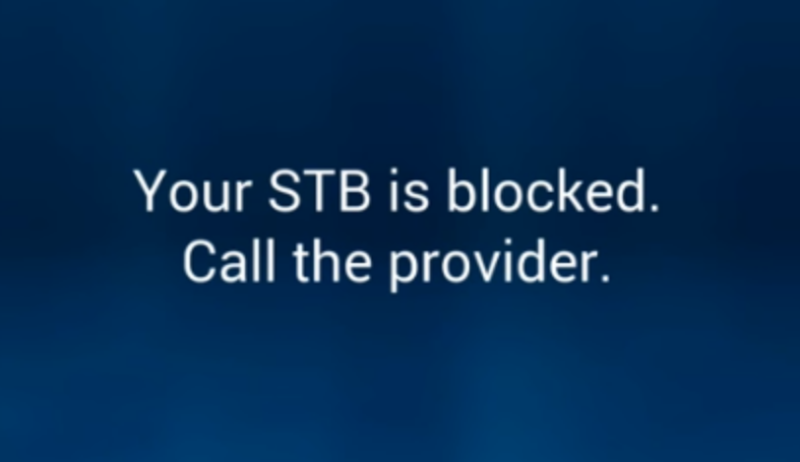
When using IPTV (Internet Protocol Television), encountering a portal blocked issue can be frustrating. Whether you’re trying to watch live TV, sports, movies, or on-demand content, a portal blockage can disrupt your entire viewing experience. If you’ve come across the error message that your IPTV portal is blocked, don’t panic — this guide will walk you through the common reasons for this issue and the steps you can take to fix it. Let’s dive into what a portal blocked IPTV issue is, why it happens, and how you can troubleshoot and resolve it. 🧐 What is a Portal Blocked IPTV Issue? A portal blocked IPTV error occurs when the IPTV provider’s server blocks your access to their content, preventing you from streaming channels or using the service. This issue can happen for various reasons, ranging from server-side issues, internet connection problems, to incorrect settings on your device. When an IPTV portal is blocked, it usually means that your connection to the provider’s streaming platform is restricted or interrupted. The error might appear with a message like “Portal Blocked,” “Connection Failed,” or “Server Unavailable,” and it can prevent you from accessing your live TV or on-demand content. 🚧 Common Causes of a Portal Blocked IPTV Issue Several factors can lead to a blocked IPTV portal. Here are some of the most common reasons: 1. Incorrect Portal URL One of the most common causes of a portal blocked IPTV issue is entering an incorrect portal URL. If the URL provided by your IPTV provider has changed or is incorrect, the connection will fail, and you won’t be able to access content. 2. IPTV Server Issues If the IPTV provider’s server is down, experiencing high traffic, or undergoing maintenance, it may result in a portal blocked error. Server-side issues can sometimes be temporary, but in other cases, they may require troubleshooting by the provider. 3. Geo-Blocking or Region Restrictions Some IPTV providers restrict access to their services based on geographic location. If you’re in a region where the service is restricted, you may encounter a portal blocked error. Providers use IP-based geo-blocking to prevent users from accessing content in unauthorized locations. 4. Network Connection Problems A weak or unstable internet connection can also lead to the portal being blocked. If the network is slow, fluctuates, or disconnects frequently, the connection to the IPTV server can be lost, resulting in a blocked portal. 5. IPTV Account Expired or Banned If your IPTV subscription has expired or your account has been banned, you may not be able to connect to the IPTV server, resulting in a blocked portal message. Account suspensions or bans are often caused by violating the terms of service, such as sharing accounts or using unlicensed IPTV services. 6. Firewall or Security Settings Sometimes, the firewall or security software on your device or router can block your connection to the IPTV portal. Security features like antivirus programs or VPNs may also block access to IPTV services, leading to a portal block. 🛠️ How to Fix a Portal Blocked IPTV Issue Here are some step-by-step solutions to resolve a portal blocked IPTV error: 1. Check the Portal URL Make sure the portal URL you’ve entered is correct. If your IPTV provider has changed their URL or if you received a new portal link, update the settings in your IPTV app or device with the new link. Double-check the spelling and ensure there are no typos. 2. Restart Your Device and Router Sometimes, a simple reboot can fix the issue. Restart your IPTV device, such as an Android box or smart TV, and your router. This can refresh the connection and resolve any temporary issues causing the portal to be blocked. 3. Use a VPN to Bypass Geo-Restrictions If you suspect that your portal is blocked due to geo-restrictions or IP blocking, you can use a VPN (Virtual Private Network). A VPN allows you to change your IP address and mask your location, making it appear as though you’re in a region where the IPTV service is accessible. Steps to use a VPN: Install a reliable VPN on your device (e.g., NordVPN or ExpressVPN). Connect to a server in a region where IPTV access is not restricted. Try reconnecting to the IPTV portal. 4. Check the IPTV Server Status If the problem persists, check if the IPTV provider’s server is down. You can visit the provider’s website or contact customer support for more information. Some providers offer status pages where they post updates about server downtime or ongoing maintenance. 5. Contact Your IPTV Provider If the issue seems to be server-related or your account has expired, reach out to the customer support team of your IPTV provider. They may need to resolve server issues on their end or provide you with a new portal URL if there have been any changes. 6. Update Firmware and Software Outdated firmware or app versions can cause compatibility issues with the IPTV portal. Make sure your IPTV device’s firmware and any apps you use are up-to-date. This can resolve compatibility issues and restore access to the IPTV portal. 7. Disable Firewall or Security Software Check if your firewall, antivirus, or security software is blocking your IPTV connection. Try temporarily disabling these programs to see if they are causing the portal blocked issue. If this resolves the problem, consider adding your IPTV app or device to the firewall’s allow list. ⚡ Pro Tips to Avoid Portal Blocked IPTV Issues Use a Wired Connection: A wired Ethernet connection is more stable than Wi-Fi and can help reduce the risk of connection drops that lead to blocked portals. Regularly Check for Service Updates: Stay informed about your IPTV provider’s status and any changes to their service, such as new URLs or content offerings. Use Reliable VPN Services: When bypassing geo-restrictions, always opt for reputable VPN providers with fast connection speeds and reliable servers. Clear Cache and Data: Sometimes, clearing the cache and data of the IPTV app can help